When creating clips using transcript-based selections, you may notice that the resulting clip starts or ends a few seconds earlier or later than expected. This behavior is normal when transcripts are generated from closed captions.
Why This Happens
Closed captions are not always perfectly synchronized to the exact video frames. They are typically timed for readability and delivery, especially in live or broadcast environments. Because of this, captions may appear slightly ahead of or behind the spoken audio.
Since transcript timestamps are derived directly from these captions, any small timing differences are reflected when using the transcript to define clip in and out points.
What to Expect
- Minor offsets of a few seconds are expected
- The start or end might land slightly before or after the exact moment you want
- This does not indicate an issue with the clipping tool
How to Get Your Clip Just Right
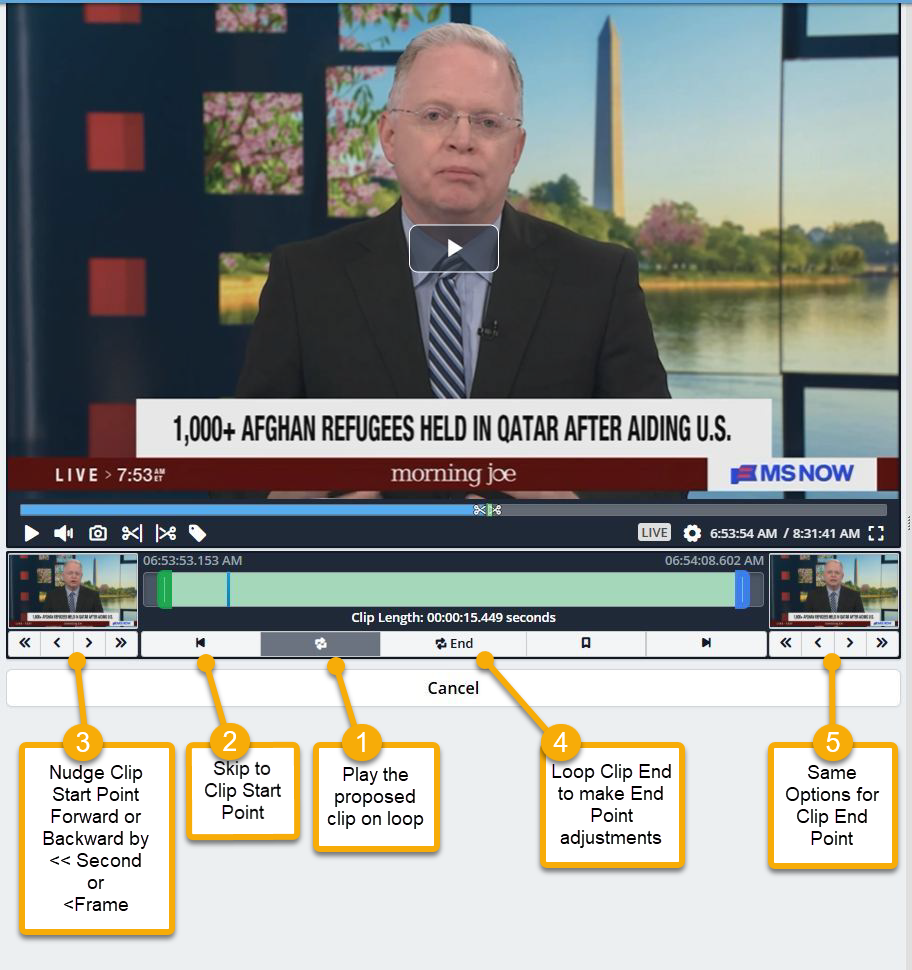
Think of the transcript as your starting point to locate the desired segment, then use the clip controls to dial things in.
Here’s how to fine-tune your clip:
- Use the transcript as a starting point to locate the desired segment
- Preview your clip by looping the selection before finalizing
- Adjust the clip boundaries using available controls:
- Nudge forward or backward by a second
- Fine tune frame by frame for exact accuracy
These tools allow you to quickly refine your clip so it matches your intended timing before creating the final version.